OCCT is a free program that can test whether your CPU, GPU, RAM, and power supply are running stable. The program stresses your computer and shows temperatures, voltages, and errors in real time, making it easier to detect potential problems.
1. Download OCCT
Go to the official website and download the program:
Install the program like a normal Windows application.
2. Start OCCT
When you open the program, you will see the OCCT main menu, where you can choose which part of your computer you want to test.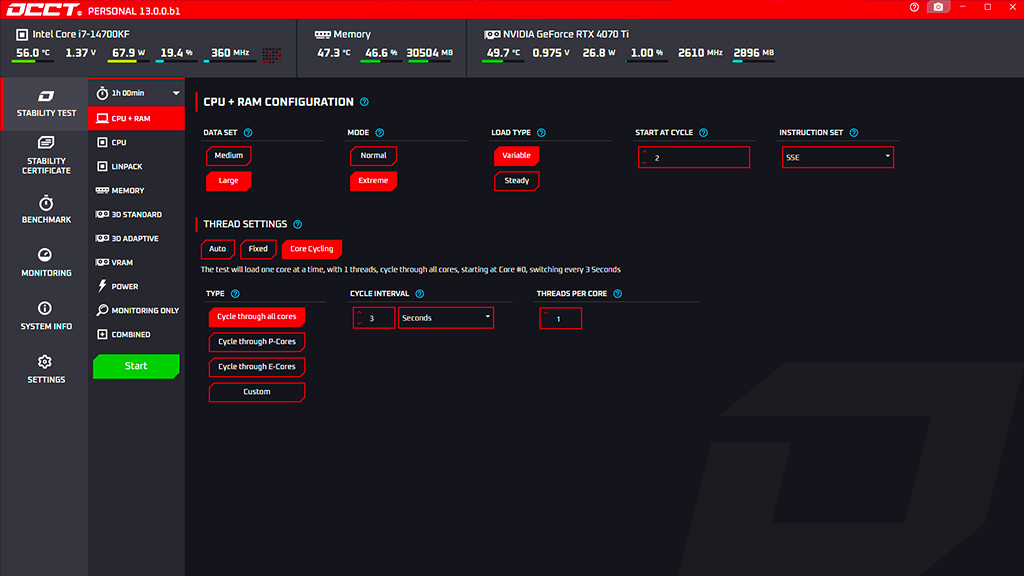
You can run tests such as:
- CPU
- GPU
- Memory (RAM)
- Power
3. Before You Start the Test
For the best results:
✔ Close all games and unnecessary programs
✔ Make sure your computer has proper cooling
✔ Monitor temperatures during the test
4. Test Your CPU
The CPU test checks whether your processor is stable.
How to do it:
- Click CPU
- Choose a test duration (for example 10–30 minutes)
- Click Start
Monitor:
- CPU temperature
- Voltage
- Any errors
If the test stops or shows errors, the CPU may be unstable.
5. Test Your Graphics Card (GPU)
The GPU test stresses your graphics card and can detect issues with graphics performance or temperature.
How to do it:
- Click 3D / GPU
- Choose the test duration
- Click Start
During the test, watch for:
- GPU temperature
- Graphical artifacts
- Crashes
6. Test Your RAM
If you experience crashes or blue screens, RAM may be the cause.
How to do it:
- Click Memory
- Start the test
- Let it run for at least 10–20 minutes
If errors appear, it may indicate faulty RAM or unstable settings.
7. Power Test (Test All Components)
The Power test stresses the CPU and GPU at the same time to test your power supply.
How to do it:
- Click Power
- Start the test
- Monitor the temperatures
Stop the test if temperatures become too high.
8. Stop the Test if Temperatures Are Too High
Stop the test if:
- CPU reaches around 90°C
- GPU reaches around 85°C
- The computer freezes or restarts
9. If You Get Errors
Errors in OCCT may indicate:
- Overheating
- Faulty RAM
- Unstable CPU
- GPU issues
- Power supply instability
OCCT is specifically used to detect unstable hardware or temperature problems under heavy load.
Need Help?
If you need assistance testing your PC, you can contact SharkGaming support:
📞 +45 77 34 27 76 – Private customers
📞 +45 38 41 15 55 – Business customers
Opening Hours
Monday – Thursday
09:30 – 12:00
12:30 – 16:30
Friday
09:30 – 12:00
12:30 – 16:00
✅ With OCCT you can quickly determine whether your PC is stable or experiencing hardware problems.